
Quickstart: see your own API traffic in five minutes
Sign up, install the ApiTraffic SDK for Express, NestJS, Fastify, Koa, hapi, AdonisJS, LoopBack, Sails, Meteor or Strapi, and watch your first request arrive in ApiTraffic.
This guide takes you from a new account to your own requests in the ApiTraffic request log. It follows the Getting Started page in the app step for step, so you can keep both open side by side. Plan on about five minutes.
When you finish, every request your application serves is recorded with its headers, bodies, timing and outbound calls, and the rest of the product (performance monitoring, the firewall, drift detection) is one switch away.
Before you begin
- Node.js 20 or later. SDK 2.x requires Node 20. The 1.x packages still run on Node 18. Some frameworks need newer: AdonisJS 6 needs Node 20.6, AdonisJS 7 needs Node 24, and NestJS 12 needs Node 20.19 or 22.12.
- A supported framework: Express 4.17 or later or Express 5, NestJS 10 to 12, Fastify 4 or 5, Koa 2.13 or later or Koa 3, hapi 21, AdonisJS 6 or 7, LoopBack 4, Sails 1, Meteor 3, or Strapi 5. Anything else can be captured through the ApiTraffic proxy instead (see Integrations overview).
- Outbound HTTPS from wherever your app runs to
ingest.apitraffic.ioandapi.apitraffic.io. - The owner or admin role to create an ingest token. If you are a member, ask an owner or admin for a token, or have them do step 3.
Tip: Want to look around first? Every account can open a read-only demo bucket, Sample: Acme Store API, filled with live traffic from a fictional store. Choose Explore sample data on the setup page, or see Sample data.
Create your account
Sign up
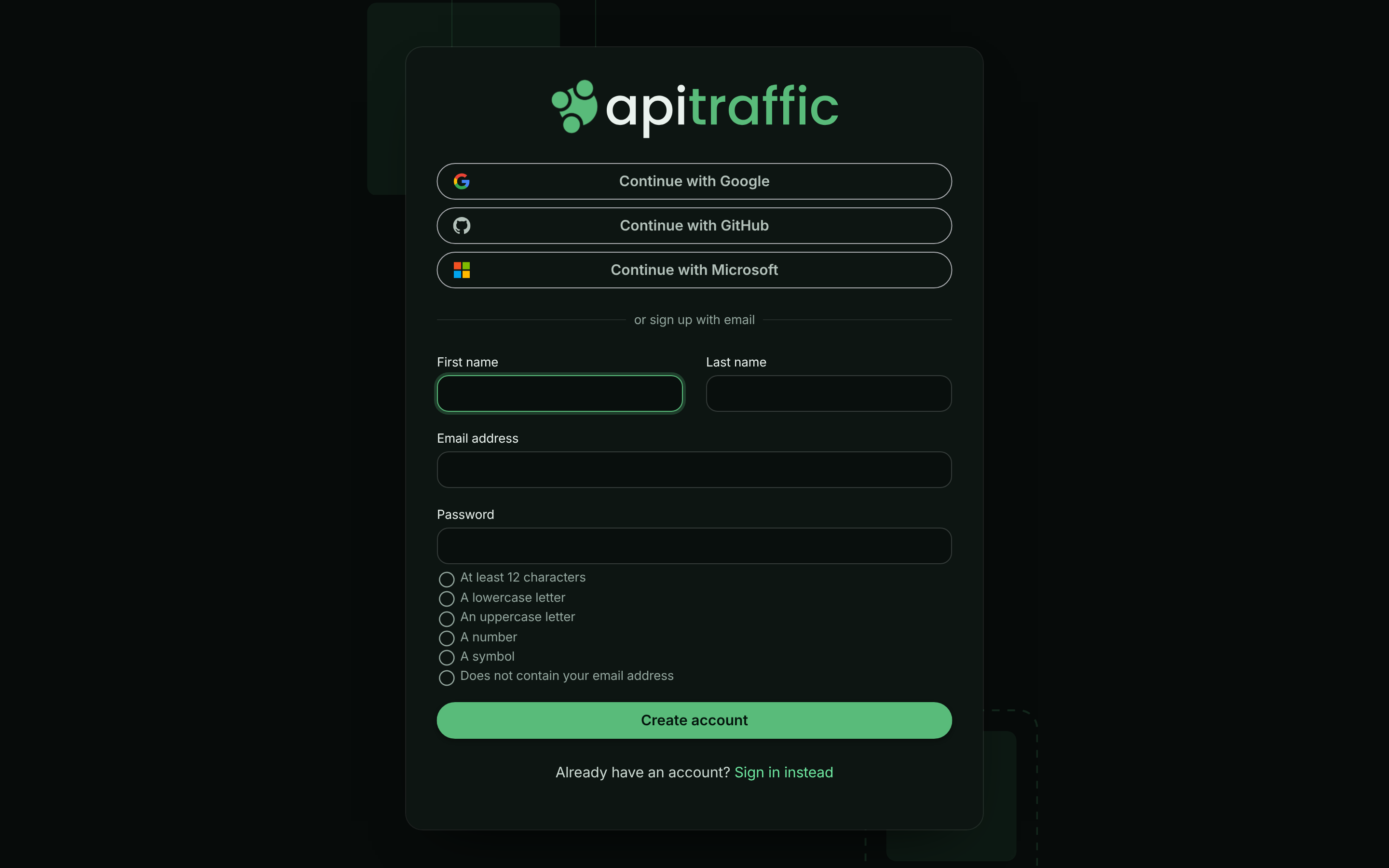
Go to app.apitraffic.io/signup. Sign up with a social account, or enter your First name, Last name, Email address and Password and choose Create account.
The sign-up page.
Confirm your email address
If you signed up with an email address, open the confirmation link we send you. It expires after 24 hours. Social sign-ins skip this step.
Sign in
Your new account starts on a trial. You are the account owner, and the account already has a bucket called Default Bucket for your first application.
Open the setup page
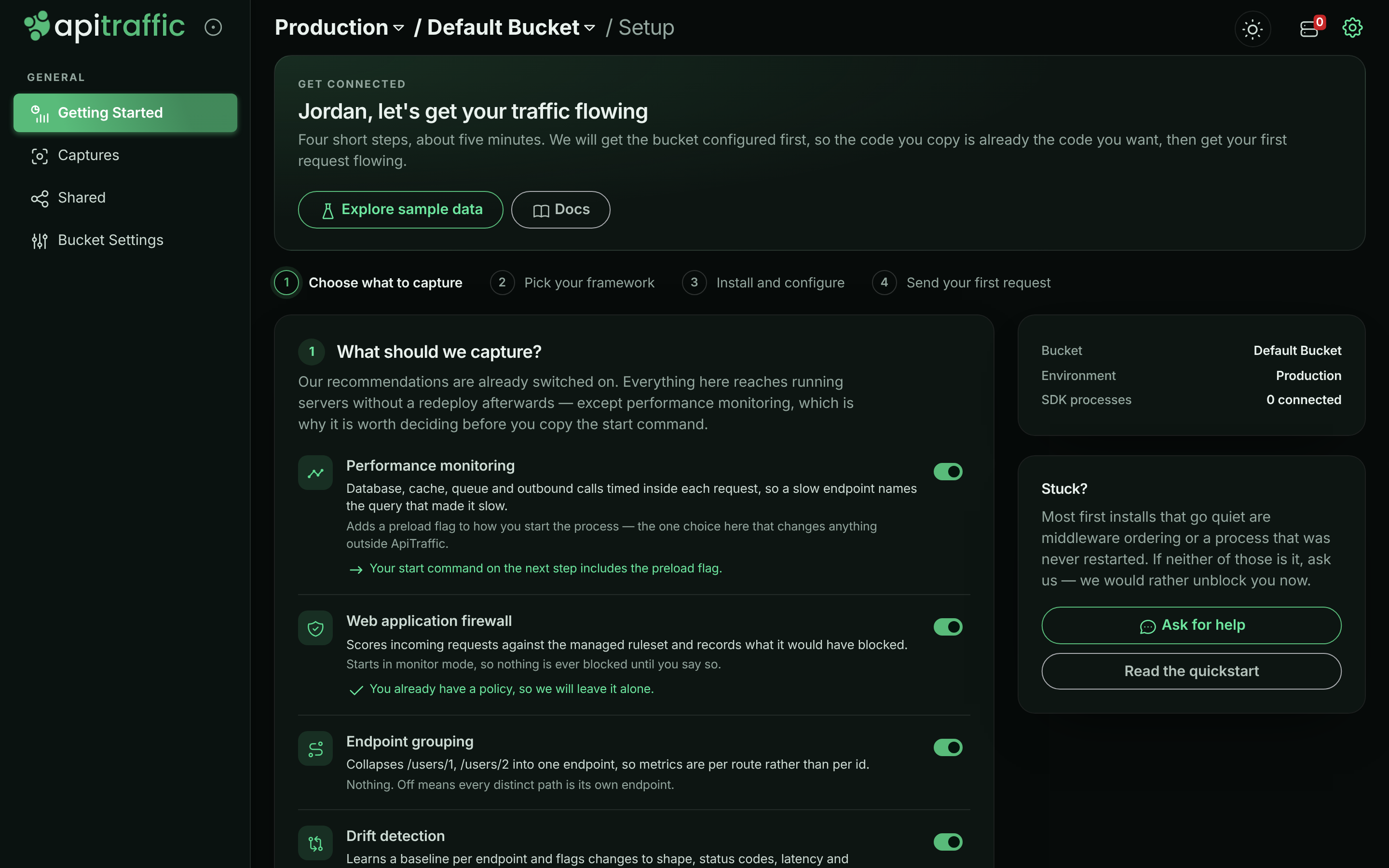
Until a bucket receives its first request, opening it shows the setup page, Getting Started in the left navigation. It walks you through four steps: Choose what to capture, Pick your framework, Install and configure and Send your first request. Each step opens once the one before it is done.
The panel on the right shows the Bucket and Environment you are setting up. Check both before you continue:
- Bucket is where this application’s traffic lands. Use one bucket per application or service. To add one, open the bucket menu at the top of the page and choose Create Bucket.
- Environment is the stage the traffic comes from, such as production or staging. The ingest token you create in step 3 belongs to the selected environment, so pick the right one first. To add one, open the environment menu and choose Create Environment.
The setup page for a bucket nothing has connected to yet.
Step 1: Choose what to capture
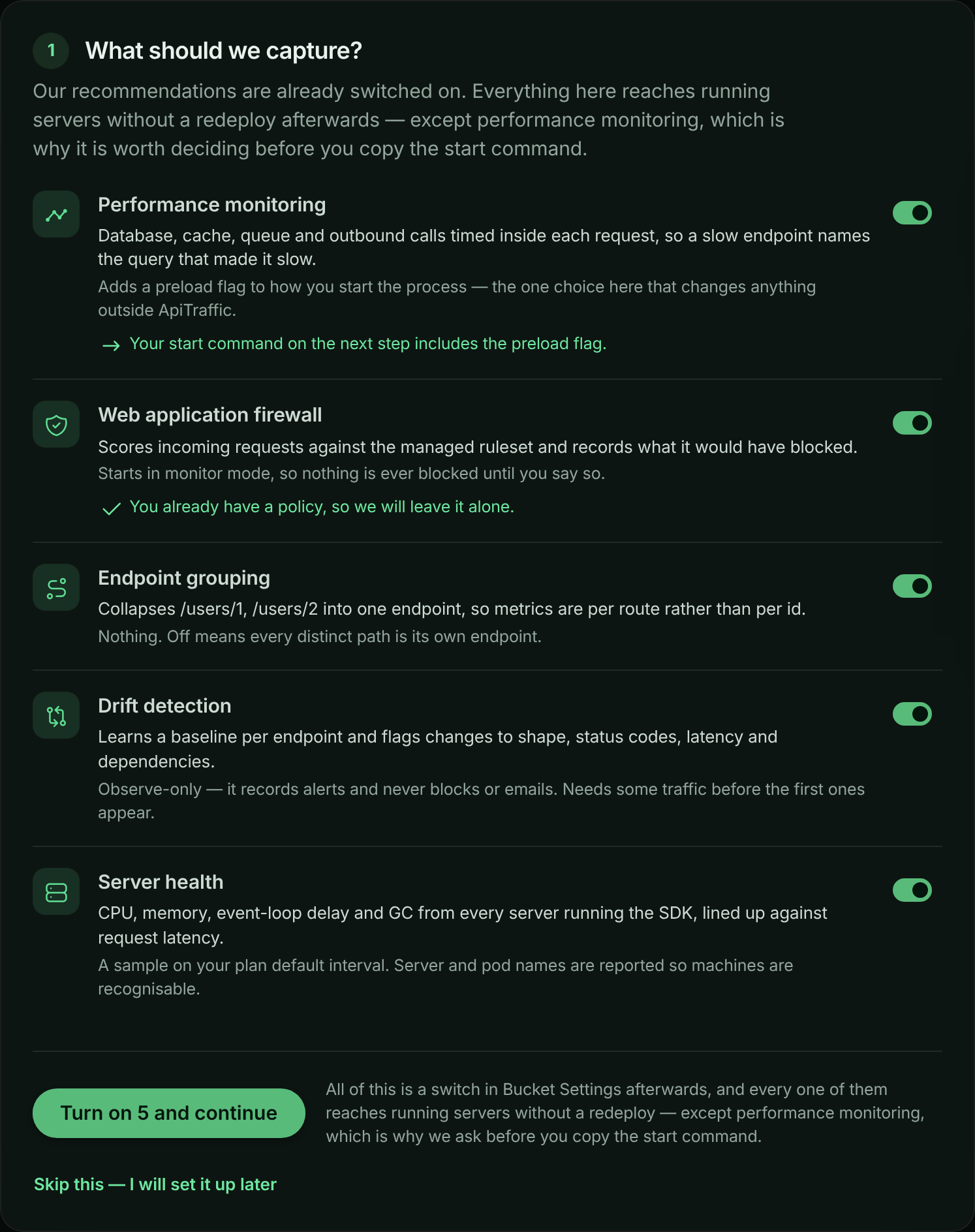
What should we capture? lists five features. The recommended answer is already switched on, so most people can accept it as is.
| Feature | What it gives you | Afterwards, change it under |
|---|---|---|
| Performance monitoring | Database, cache, queue and outbound calls timed inside each request. Adds a preload flag to your start command. | Bucket Settings → APM Capture |
| Web application firewall | Scores incoming requests against the managed rule set. A starter policy is created in Monitor mode, so nothing is blocked until you say so. | Account → Firewall (WAF) |
| Endpoint grouping | Collapses /users/1 and /users/2 into one endpoint, so metrics are per route. |
Bucket Settings → Endpoint Handling |
| Drift detection | Learns a baseline per endpoint and flags changes to shape, status codes, latency and dependencies. | Bucket Settings → Drift Detection |
| Server health | CPU, memory, event-loop delay and GC from every server running the SDK. | Bucket Settings → Host Telemetry |
Choose Turn on 5 and continue (the number matches what you left on), or Skip this - I will set it up later.
Everything except performance monitoring reaches running servers without a redeploy, so you can change it later. Performance monitoring is asked first because it changes how you start your process, and the next step shows the start command.
Step 1 opens with the recommended features switched on.
Note: Only owners and admins can create firewall policies. If you are a member, your other choices are saved and the page asks you to have an owner or admin add the policy under Account → Firewall (WAF). If your plan does not include the firewall, the starter policy is skipped and everything else is still turned on.
Step 2: Pick your framework
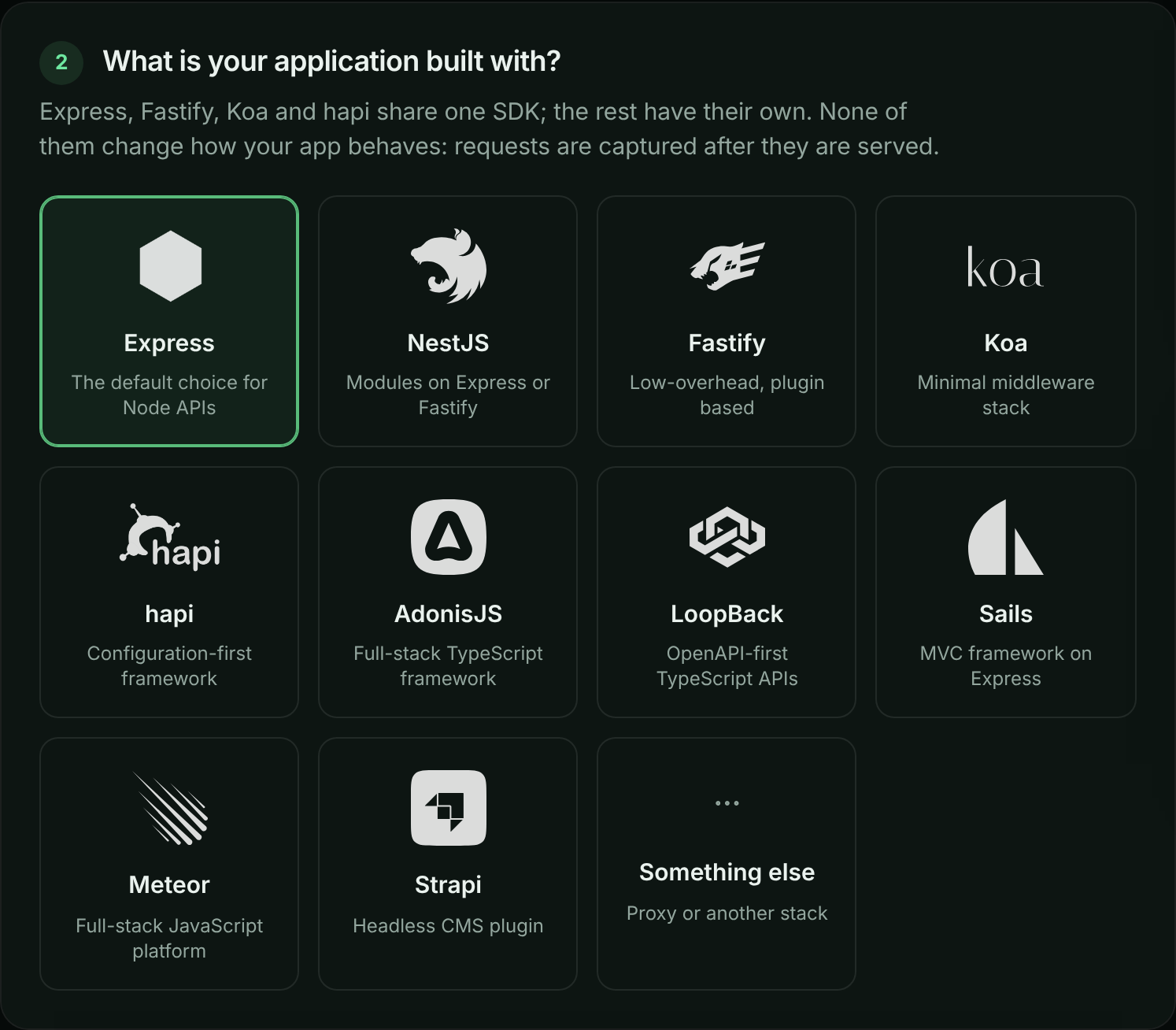
What is your application built with? Choose Express, NestJS, Fastify, Koa, hapi, AdonisJS, LoopBack, Sails, Meteor or Strapi. Choose Something else if you use another stack: the page offers Generate a proxy URL, which captures the same request log without an SDK, minus the outbound calls your app makes.
Pick the framework your application uses.
Step 3: Install and configure
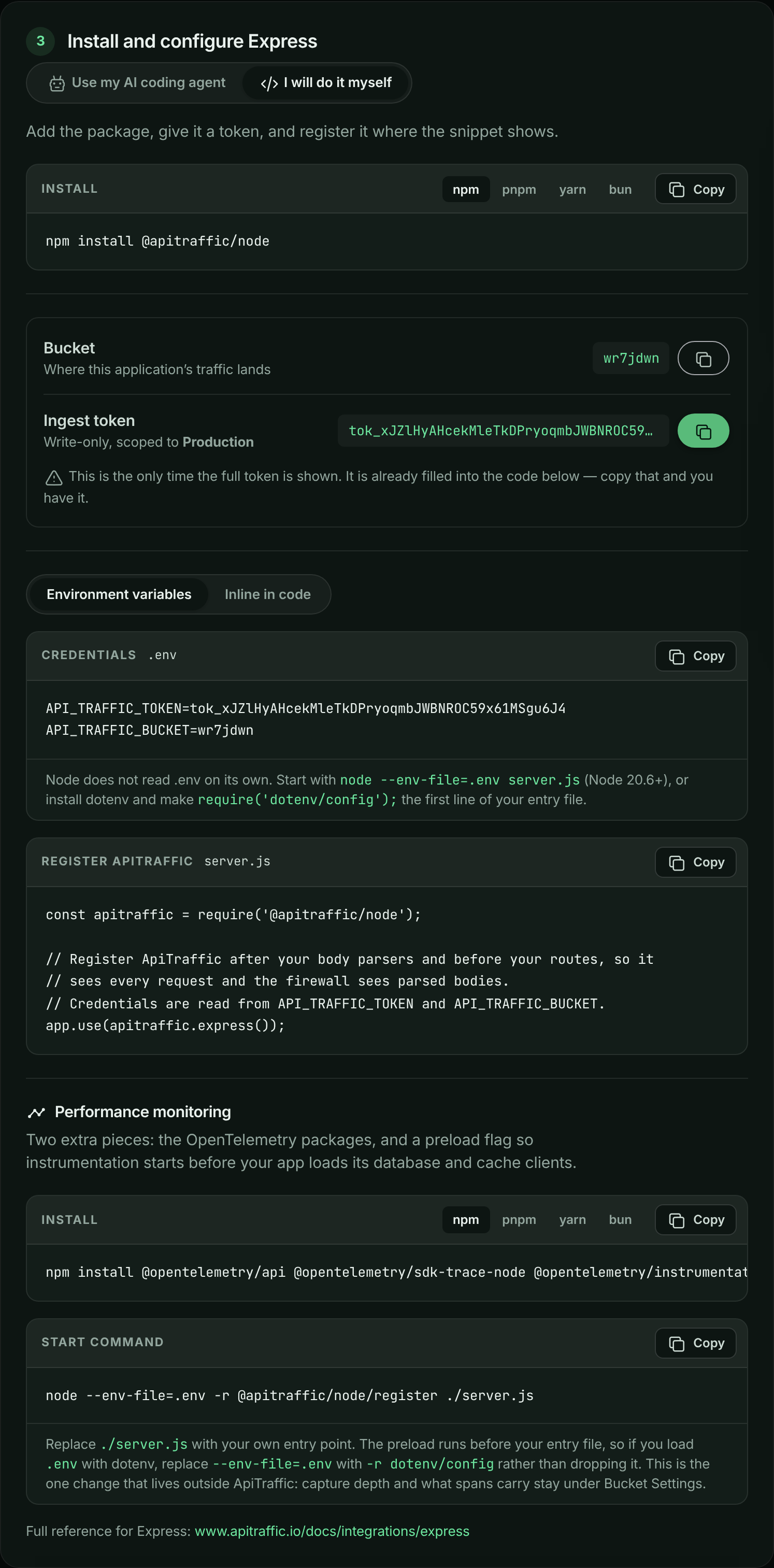
Step 3 offers two ways to install: Use my AI coding agent (the default) and I will do it myself. The page remembers which one you picked.
Create an ingest token
Choose Create ingest token. The token is scoped to the environment shown and is meant for the SDK: it sends traffic and reads the SDK’s settings, nothing else. Keep it as secret as any other credential (see API tokens).
Warning: This is the only time the full token is shown. The page fills it into the agent prompt and the snippets for you, so copy one of them before you leave. If you lose it, create another one; tokens cost nothing and you can revoke old ones under Account → API Tokens.
If the environment already has an ingest token and you still have its value, choose I already have an ingest token and use that one.
Step 3 with an ingest token filled into the snippets.
Use my AI coding agent
Once you have a token, copy Prompt for your coding agent and paste it into Claude Code, Cursor, GitHub Copilot or any other agent that can edit files and run commands in your repository. Run it from your project root.
Step 3 with the prompt for your coding agent.
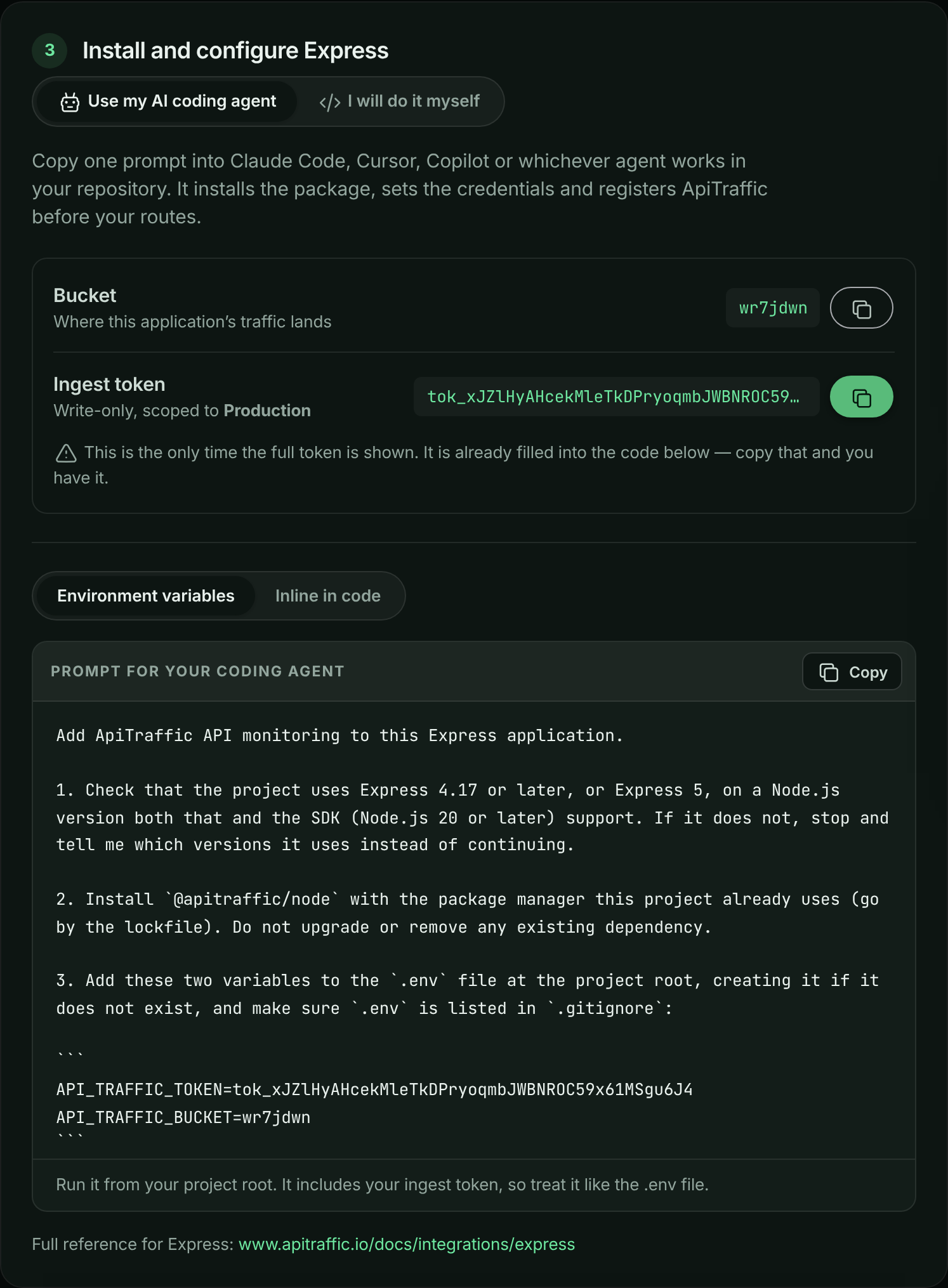
The prompt is built from your answers in steps 1 and 2 and is specific to your framework. It tells the agent to:
- Check that your project uses a supported version of the framework, and stop if it does not.
- Install the package with the package manager your project already uses.
- Add your bucket ID and token to
.env(and keep.envout of git), or pass them in code if you chose Inline in code. - Register ApiTraffic in the right place for your framework, for example after the body parsers and before the routes in Express, or on the root instance rather than inside an encapsulated plugin in Fastify.
- Add the OpenTelemetry packages and the preload flag to your start commands, if Performance monitoring was on in step 1. Deployed start commands do not reference
.env, so setAPI_TRAFFIC_TOKENandAPI_TRAFFIC_BUCKETwherever the app is deployed.
If you have not created a token, the prompt uses a placeholder and the agent asks you for your token. The prompt contains your ingest token once you create one, so treat it like your .env file.
I will do it myself
The setup page fills in your real bucket ID and token, so you can copy its snippets directly. The code below covers Express, Fastify, Koa, hapi and Strapi. For NestJS, AdonisJS, LoopBack, Sails and Meteor, the setup page shows that framework’s own install command and code, and each has a full page: NestJS, AdonisJS, LoopBack, Sails and Meteor.
Install the package
Express, Fastify, Koa and hapi share one package, @apitraffic/node. Your framework stays your own dependency. The other frameworks have their own package; the setup page and the agent prompt show the right one, and each has its own page under Integrations.
npm
npm install @apitraffic/node
pnpm
pnpm add @apitraffic/node
yarn
yarn add @apitraffic/node
bun
bun add @apitraffic/node
Strapi uses its own plugin instead: install @apitraffic/strapi with the same command.
Set your credentials
The SDK reads two environment variables, so no token has to live in your source code:
API_TRAFFIC_TOKEN=YOUR_INGEST_TOKEN
API_TRAFFIC_BUCKET=YOUR_BUCKET_ID
Node does not read .env files on its own. Start your app with node --env-file=.env server.js (Node 20.6 and later), or install dotenv and make require('dotenv/config'); the first line of your entry file. Strapi and AdonisJS load .env themselves.
You can pass the values in code instead, for example apitraffic.express({ token, bucket }). A value passed in code wins over the environment variable. On the setup page, switch between Environment variables and Inline in code to see both forms.
Register ApiTraffic in your app
Register ApiTraffic before your routes. Middleware registered after a route never sees the requests that route handles.
Express
Register your body parsers first, so the firewall can inspect request bodies, then ApiTraffic, then your routes.
const express = require('express');
const apitraffic = require('@apitraffic/node');

const app = express();

app.use(express.json());        // body parsers first
app.use(apitraffic.express());  // then ApiTraffic, before your routes

app.get('/api/users', (req, res) => {
  res.json({ users: [] });
});

app.listen(3000);
Fastify
Register the plugin without await: Fastify loads plugins before listen(), and CommonJS has no top-level await.
const fastify = require('fastify')();
const apitraffic = require('@apitraffic/node');

fastify.register(apitraffic.fastify());

fastify.get('/api/users', async () => ({ users: [] }));

fastify.listen({ port: 3000 });
Koa
Add your body parser first, then ApiTraffic, so it wraps the middleware that follows.
const Koa = require('koa');
const { bodyParser } = require('@koa/bodyparser');
const apitraffic = require('@apitraffic/node');

const app = new Koa();

app.use(bodyParser());
app.use(apitraffic.koa());

app.use(async (ctx) => {
  ctx.body = { users: [] };
});

app.listen(3000);
hapi
Register the plugin before server.start(), inside an async function.
const Hapi = require('@hapi/hapi');
const apitraffic = require('@apitraffic/node');

const init = async () => {
  const server = Hapi.server({ port: 3000 });

  await server.register(apitraffic.hapi());

  server.route({
    method: 'GET',
    path: '/api/users',
    handler: () => ({ users: [] })
  });

  await server.start();
};

init();
Strapi
Add the plugin’s middleware to config/middlewares.js, keeping the middlewares Strapi ships with. The Strapi plugin is configured only through environment variables (or config/plugins.js), so set API_TRAFFIC_TOKEN and API_TRAFFIC_BUCKET in your .env.
module.exports = [
  // ...leave the middlewares Strapi ships with in place
  'plugin::apitraffic.apitraffic'
];
Framework-specific options and edge cases are on each framework’s page, starting from the Integrations overview. Every option and environment variable is in SDK configuration.
Add performance monitoring (if you turned it on)
If Performance monitoring was on in step 1, the setup page adds two pieces. OpenTelemetry patches libraries as they are loaded, so it has to start before your app loads pg, redis and the rest. That is why this is a change to how you start the process rather than to your code.
Install the OpenTelemetry packages:
npm install @opentelemetry/api @opentelemetry/sdk-trace-node @opentelemetry/instrumentation @opentelemetry/auto-instrumentations-node
Then start your app with the preload flag:
node --env-file=.env -r @apitraffic/node/register ./server.js
Replace ./server.js with your own entry point. The preload runs before your entry file, so it does not see variables your entry file loads: if you load .env with dotenv, replace --env-file=.env with -r dotenv/config rather than dropping it. If your app already runs OpenTelemetry, uses ES modules, or runs Datadog or New Relic, follow Set up APM instead.
If the OpenTelemetry packages are missing, APM is skipped with a one-line reason on the console and your app starts normally.
Step 4: Send your first request
Restart your app so it picks up the token and bucket (both are read at startup), then call any endpoint it serves:
curl http://localhost:3000/api/users
The setup page watches for your application by itself; there is nothing to refresh. The connection status moves through three states:
| Status | What it means | What to check |
|---|---|---|
| Listening for your application | ApiTraffic has not heard from your SDK yet. | The process was restarted after you set the token, .env is actually loaded, and outbound HTTPS is allowed. |
| SDK connected - waiting for a request | Your SDK is talking to ApiTraffic, so the token and bucket are right, but no request has been captured. | ApiTraffic is registered before your routes, you called a route your app serves, and no exclusion matches it. |
| Traffic is flowing | Requests are arriving. | Nothing. Choose View your traffic. |
The page stops checking after 20 minutes. Choose Start listening again to resume.
The setup page switches over as soon as the first request arrives.
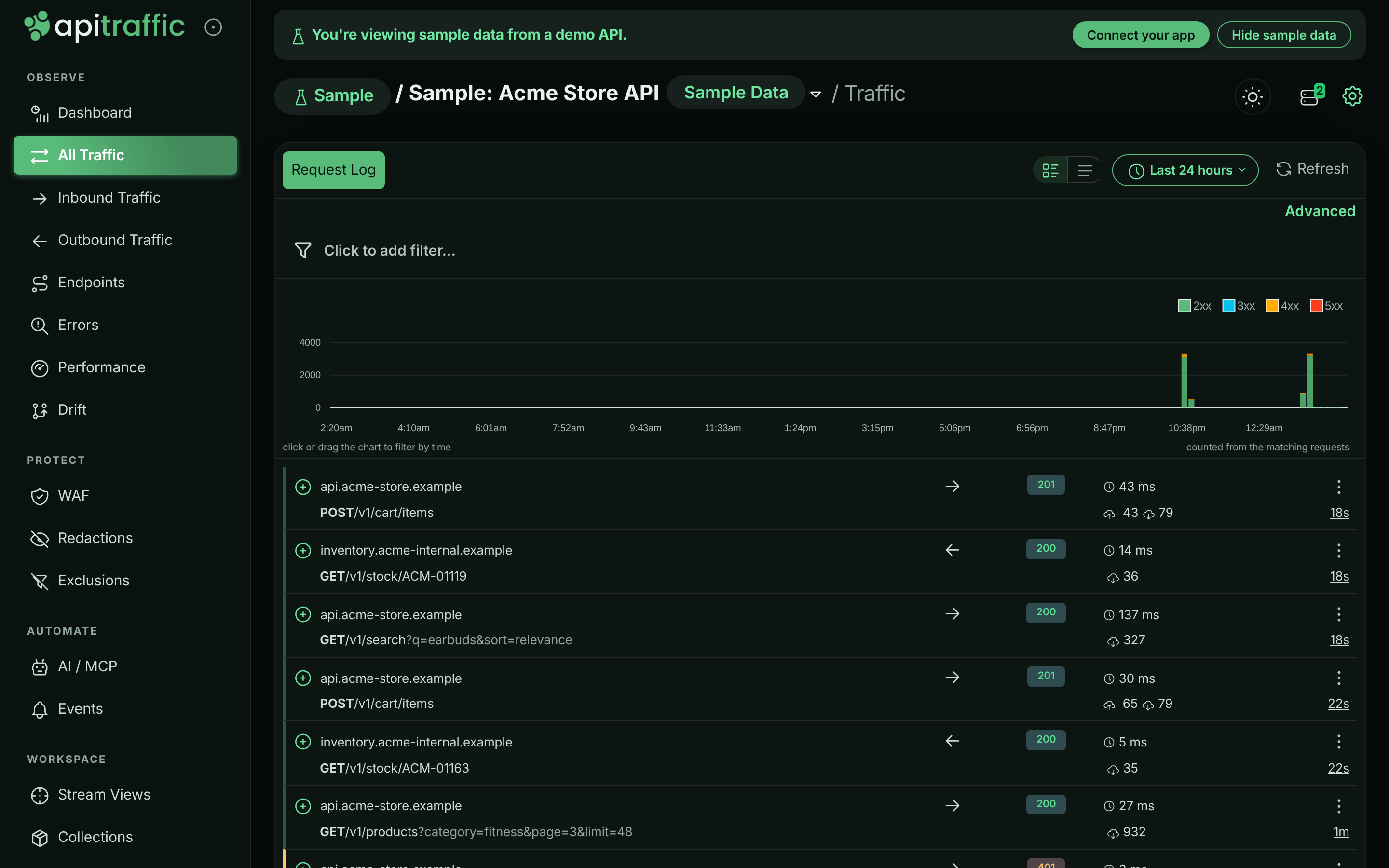
Choose View your traffic to open All Traffic, where each request has a row. Select one to see its headers, bodies, timing, outbound calls and, with APM, its waterfall. See Request log and Request details.
Captured requests in All Traffic.
What to do next
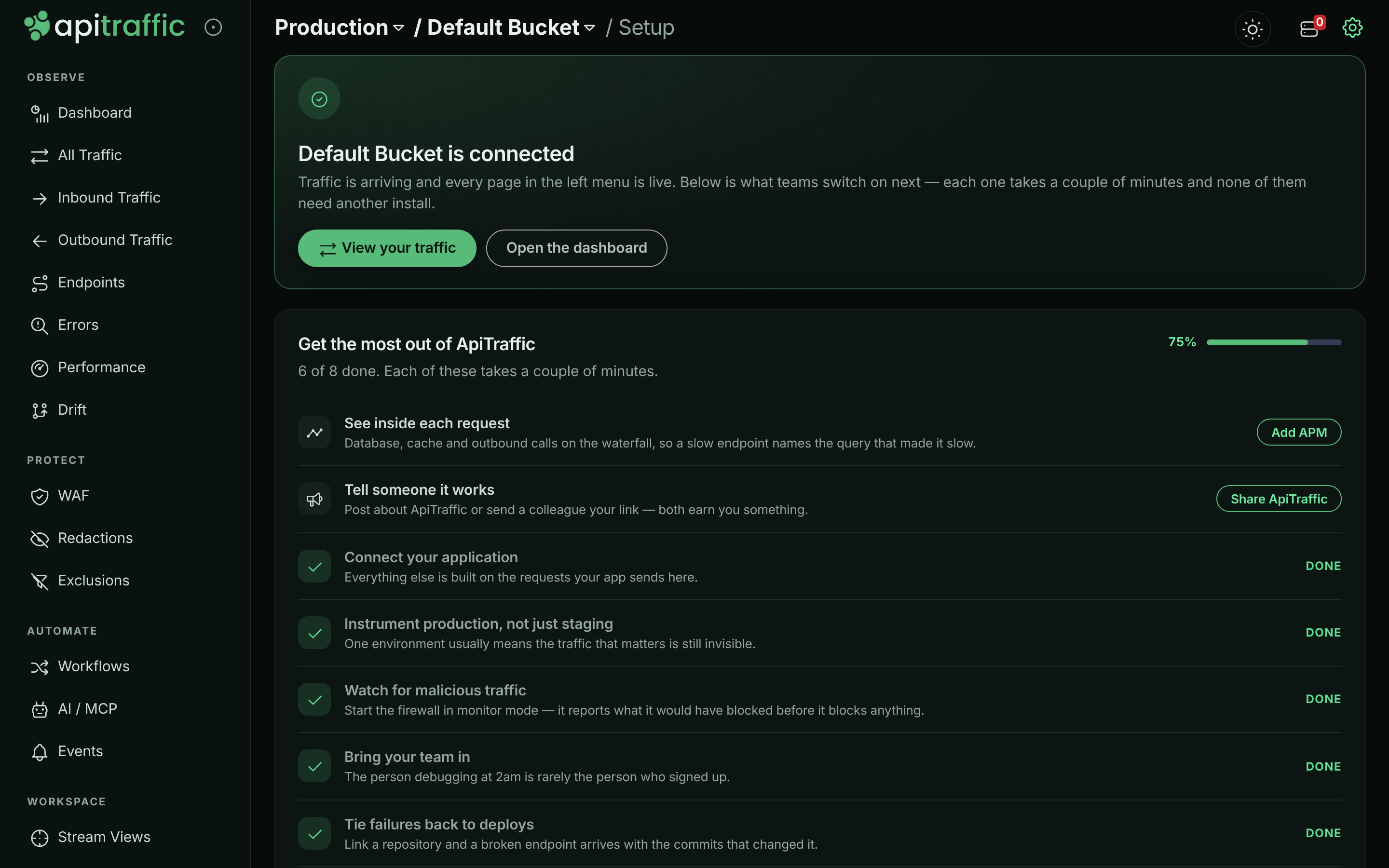
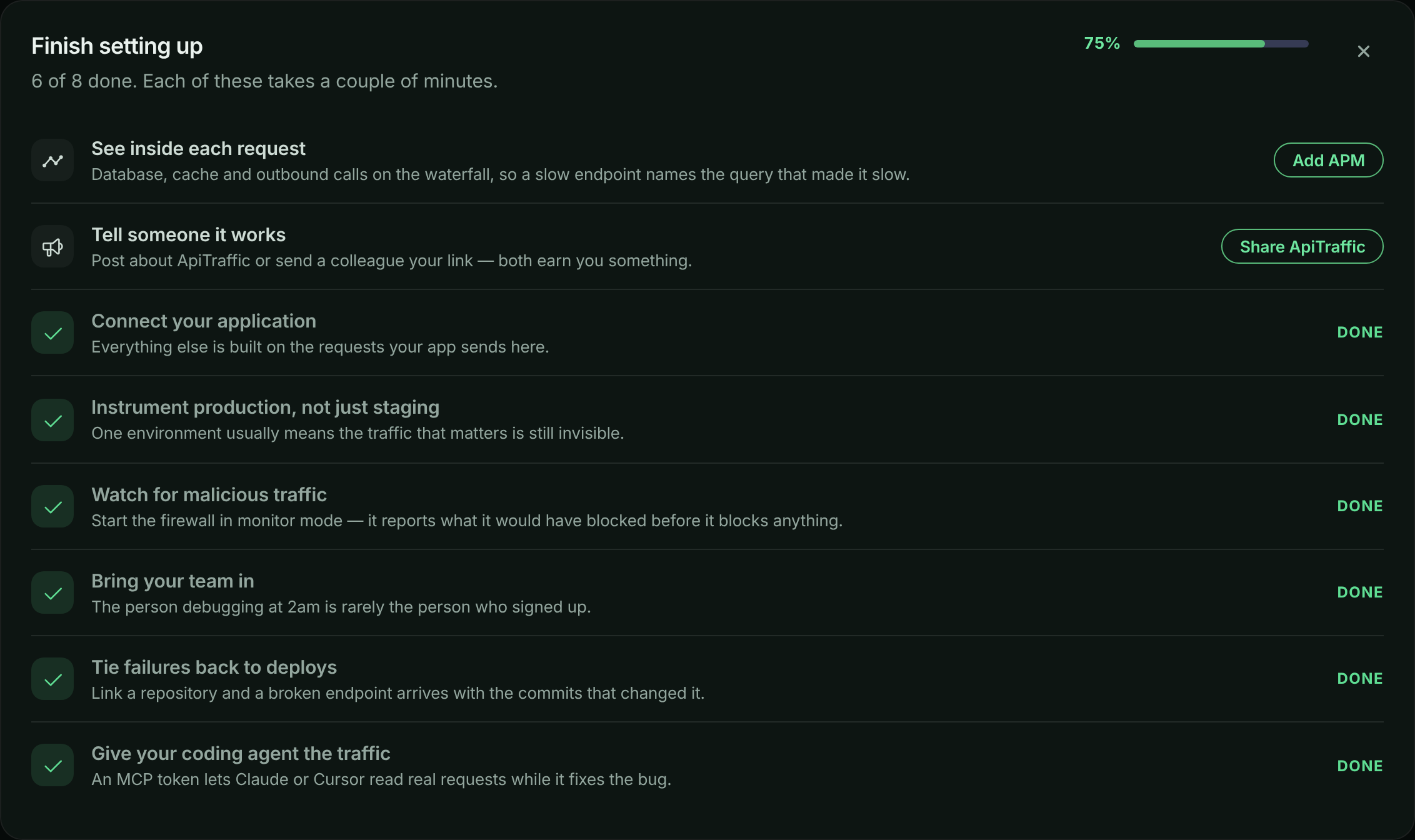
Once traffic is flowing, the setup page shows Get the most out of ApiTraffic, a checklist of what is left to switch on; the dashboard shows the same checklist as Finish setting up until you complete or dismiss it. Only the items you have not done yet are listed, and the progress bar counts the rest. Dismissing it hides it for you on that account in every browser and stays hidden after you sign out; your teammates still see their own. Each item takes a couple of minutes, and each is checked off by what your account actually has (for example, spans received in the last seven days), not by visiting a page. None of them need another install, except performance monitoring if you skipped it.
| Checklist item | Why it is worth doing | Where |
|---|---|---|
| Connect your application | Everything else is built on the requests your app sends. | This guide |
| See inside each request | Database, cache and outbound calls on the waterfall, so a slow endpoint names the query that made it slow. | Set up APM |
| Instrument production, not just staging | One environment usually means the traffic that matters is still invisible. Ticked when the account has more than one environment. | Environments |
| Watch for malicious traffic | Start the firewall in Monitor mode: it reports what it would have blocked before it blocks anything. | Set up the firewall |
| Bring your team in | The person debugging at 2am is rarely the person who signed up. | Team and roles |
| Tie failures back to deploys | Link a repository and a broken endpoint arrives with the commits that changed it. Also ticked by sending deploy events. | Git integrations |
| Tell someone it works | Post about ApiTraffic or send a colleague your referral link. | Account → Referrals (Referrals) |
| Give your coding agent the traffic | Connect Claude, Cursor or another MCP client so your agent reads real requests while it fixes the bug. | MCP server |
The setup checklist on the dashboard.
Also worth doing early:
- Redact sensitive data. Credential-shaped body keys and query parameters (such as
password,tokenandsecret) are masked by default. Add your own rules for card numbers, personal data and custom headers; rules set to Redact at API run inside your process, so the values never leave your server. See Redactions. - Exclude noise. Drop health checks and internal routes before they are sent. See Exclusions.
No requests showing up?
The status stays on Listening for your application
ApiTraffic has not heard from your SDK at all. Check, in order:
- You restarted the process after setting
API_TRAFFIC_TOKENandAPI_TRAFFIC_BUCKET. Both are read at startup. - Your
.envfile is actually loaded: start withnode --env-file=.env server.js, or makerequire('dotenv/config');the first line. Without it, the SDK starts with no token and logs thatAPI_TRAFFIC_TOKENis missing. - The token is an Ingest token, and the bucket ID is the one on the setup page.
- Outbound HTTPS to
ingest.apitraffic.ioandapi.apitraffic.iois allowed from where the app runs. - Set
API_TRAFFIC_DEBUG=trueand restart. The SDK logs what it is doing and why a send failed.
The status says SDK connected - waiting for a request
Your token and bucket are right; no request has been captured yet.
- Register ApiTraffic before your routes. Middleware added after a route never sees its requests.
- Call a route your app actually serves. A health check that returns before your routes is not captured.
- If you added exclusions, check that none of them matches everything.
I am a member and cannot create an ingest token
Only owners and admins can create tokens. Ask one of them to create an ingest token for the environment and send it to you, then choose I already have an ingest token.
My app is not on a supported framework
Choose Something else in step 2 and use Generate a proxy URL to route traffic through the ApiTraffic proxy, or see Integrations overview.
For everything else, including missing bodies, missing spans and plan limits, see Troubleshooting. On the setup page, Ask for help opens a chat with us.
Related
-
How ApiTraffic works: Buckets, environments, tokens, redaction and the rest of the model.
-
Node SDK: Tagging, tracing, delivery health and failure behavior.
-
Set up APM: See the queries, cache calls and outbound requests inside each request.
-
Troubleshooting: Fixes for missing data, blocked traffic and connection problems.