
Segments
Group the buckets of one system, such as everything behind checkout, and see them on one overview, one dashboard and one traffic search
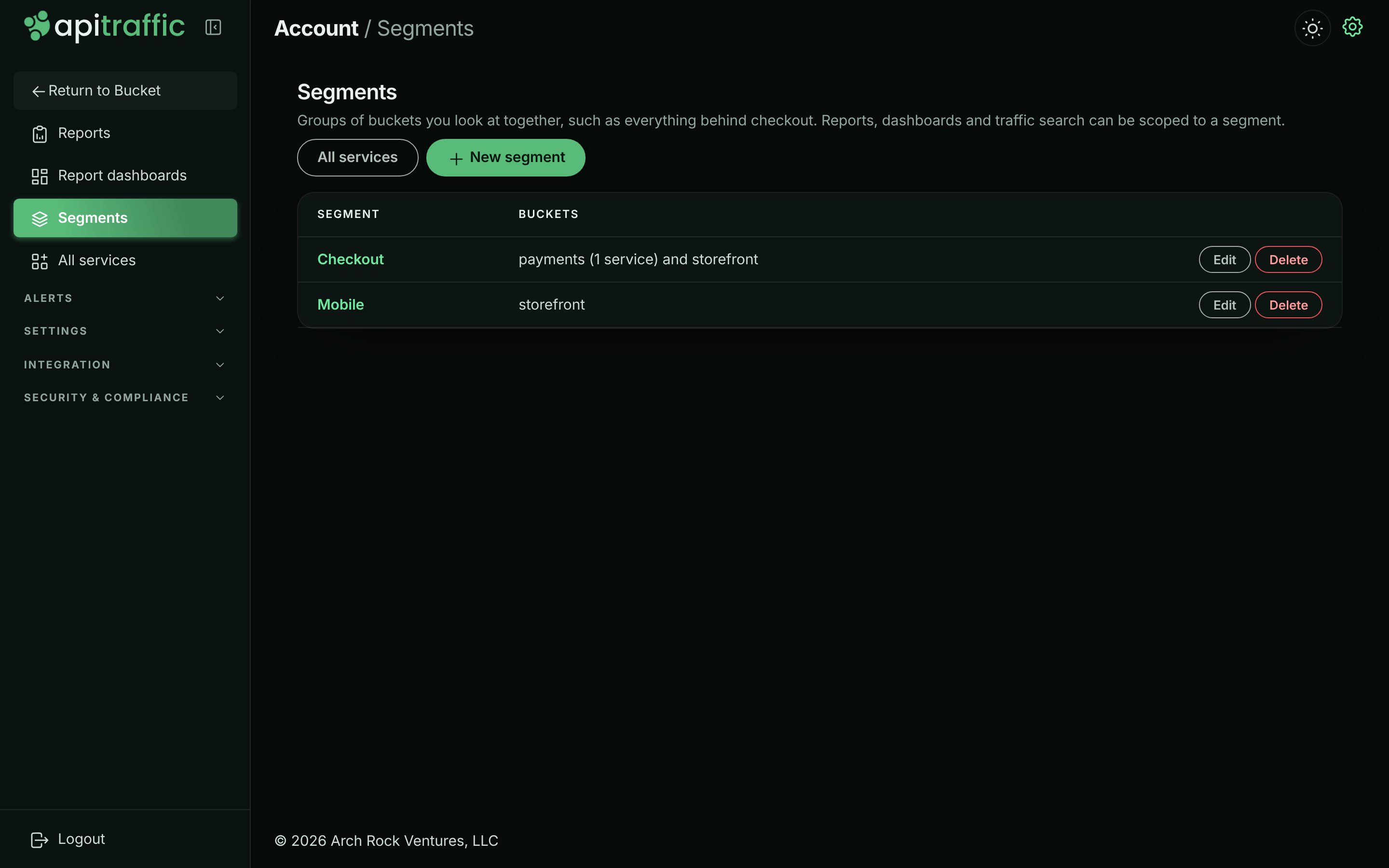
A segment is a named group of buckets, such as Checkout for the storefront, checkout and payments buckets. It holds no data and no settings: it is a saved scope. Every segment opens on a ready-made overview, and reports, dashboards and traffic search can be scoped to a segment instead of one bucket.
A segment is read as it is when something runs, so a bucket you add to it tomorrow shows up in every dashboard on it without editing the dashboard.
Segments need the Segments feature in your plan. Open Segments in the All buckets sidebar.
The Segments page.
Who can do what: everyone on the account sees every segment. Any member can create and change segments. Deleting one is for the person who created it, or an owner or admin.
Creating a segment
Start a new segment
In Segments, click New segment. Or open the bucket menu at the top of the app and choose Add to Segment, then New segment with this bucket.
Name it
Give it a Name, optionally a Description, and the environment it Opens in (production, usually).
Choose its buckets
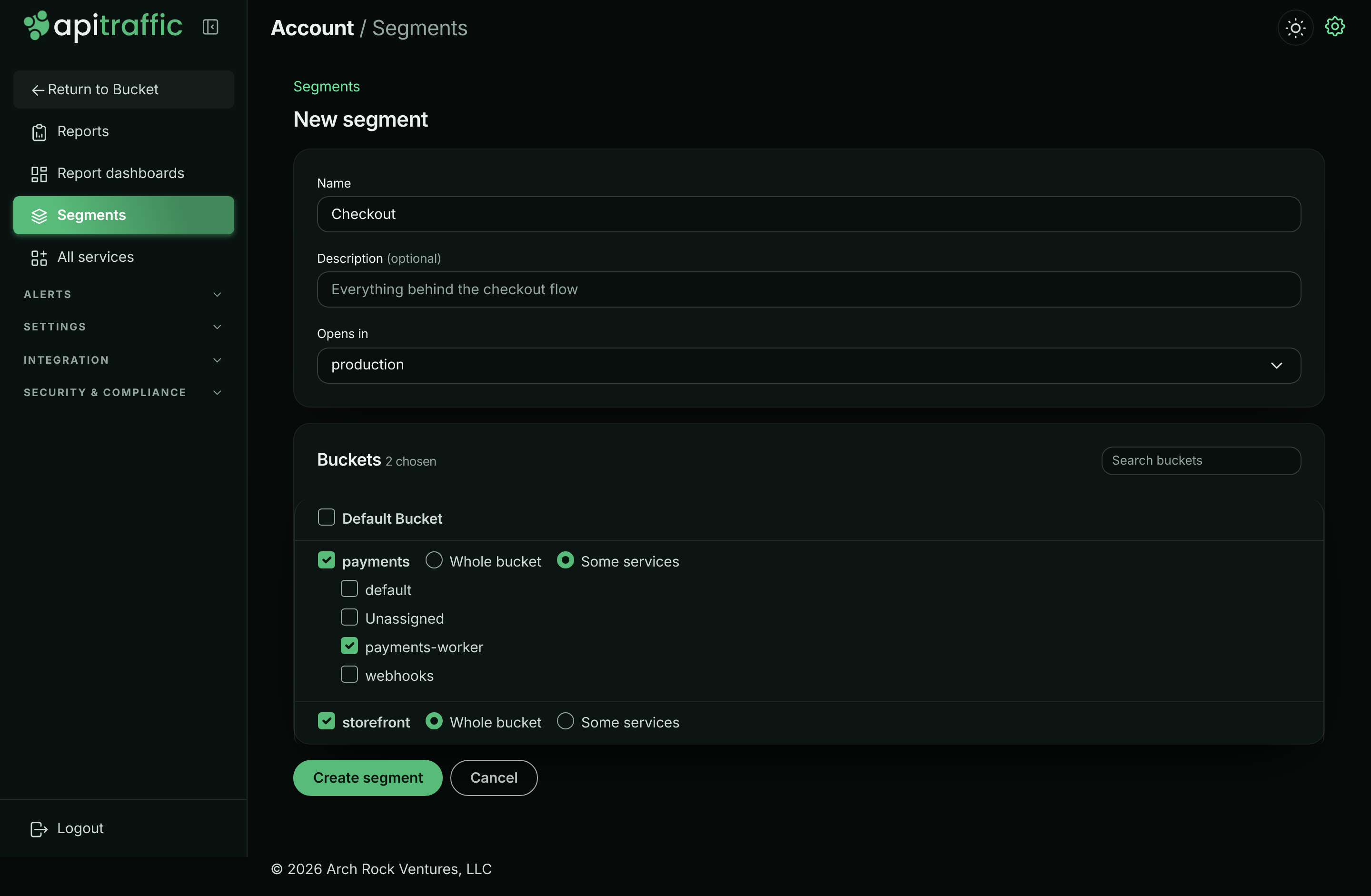
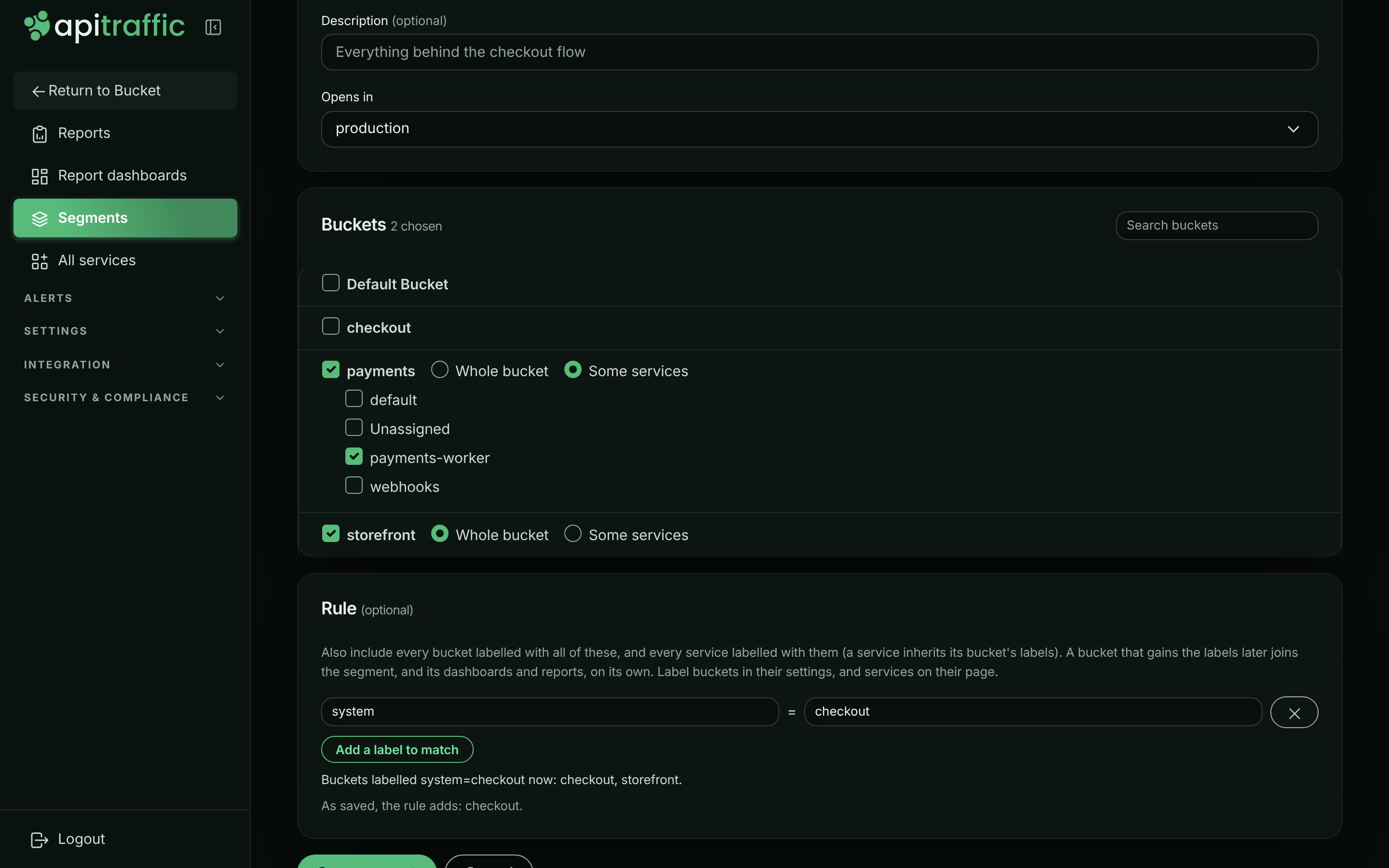
Tick each bucket to include. A bucket is included as the Whole bucket, which covers its services now and any added later, or choose Some services and tick the services you want.
Save
Click Create segment. The segment’s overview opens.
Choosing a segment’s buckets and services.
Choosing services follows the rules of the bucket’s Services page: a service that is later merged into another is read as the service it was merged into, and renames and new names apply to all past traffic. An archived service cannot be newly chosen; one already in the segment stays until you take it out. A service that was deleted is shown as deleted, and saving the segment takes it out.
Filling a segment with a label rule
Instead of ticking every bucket, give a segment a rule: “also include everything labelled system=checkout”. A bucket that gains the label joins the segment, and every dashboard, report and search on it, without anyone editing the segment; a bucket that loses the label leaves it.
Label your buckets
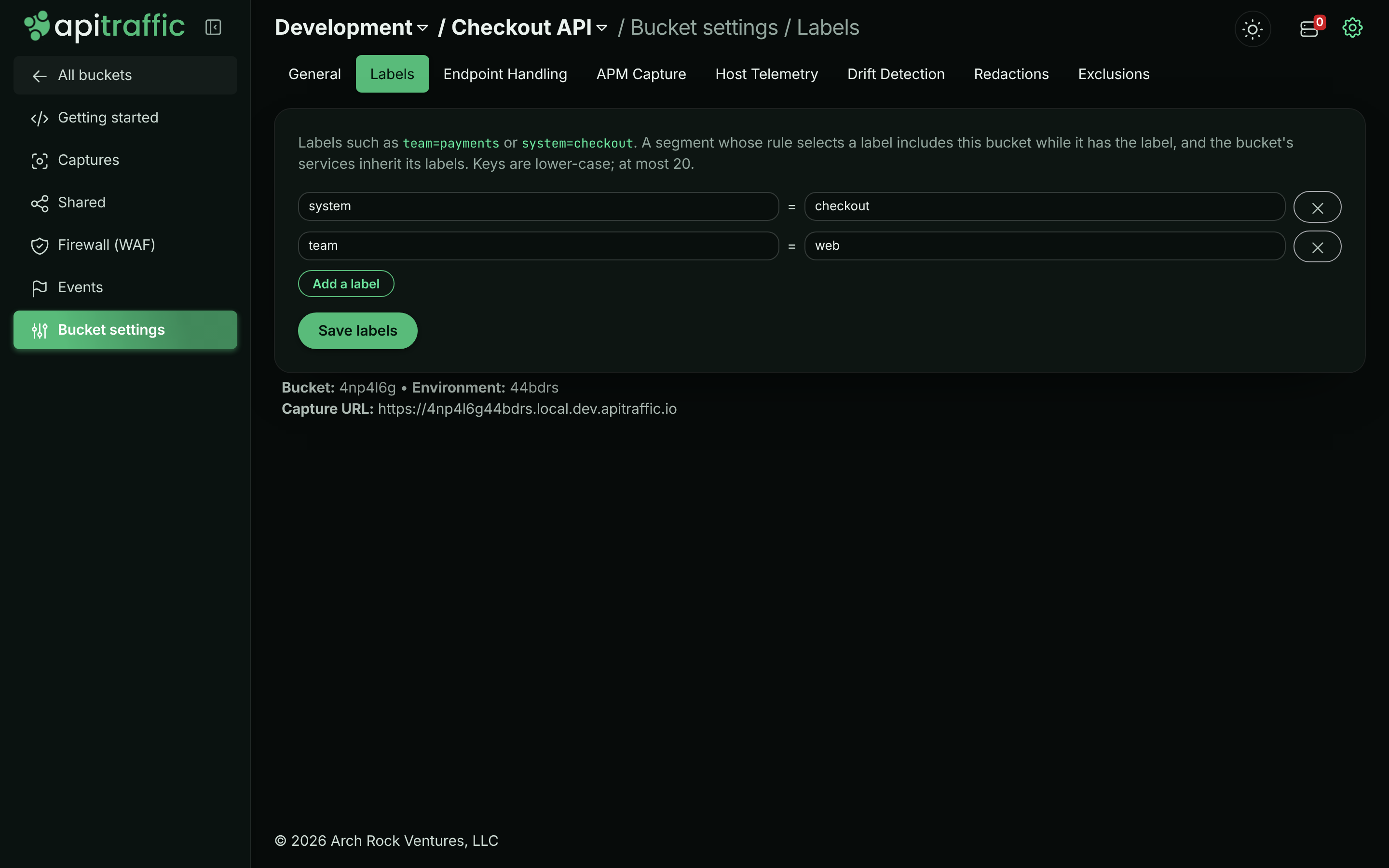
In a bucket’s left navigation, select Bucket settings, then the Labels tab, and add key-value labels such as system=checkout or team=payments. Keys are lower-case letters, digits, ., _, - or /; values are up to 100 characters. A bucket has at most 20 labels.
Label services, if only some belong
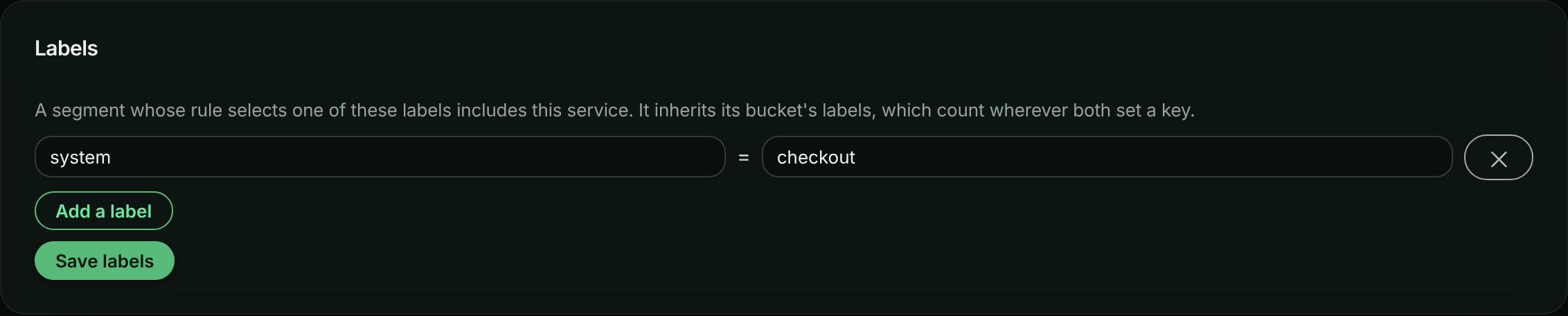
A service inherits its bucket’s labels and can add its own, on its page in Services. Where a bucket and its service set the same key, the bucket’s value counts. A service has at most 20 labels of its own.
Give the segment its rule
In New segment or Edit, under Rule, add the labels to match. The form shows the buckets labelled with them now. Every pair must match; a rule has at most 10.
A service’s own labels.
A bucket’s labels.
What a rule adds:
- A bucket labelled with every pair joins as the whole bucket.
- In a bucket that is not, each service labelled with them (its own labels, or its bucket’s) joins, and the bucket is read narrowed to those services. Archived services are not added.
- A bucket you chose by hand that the rule also matches reads what either gives it: the whole bucket if either is the whole bucket.
The segment’s overview names the members the rule added, and in Edit they are listed under the rule rather than ticked: they are not saved with the segment, they are read each time it is.
The members a rule adds, named on the overview.

A segment’s rule.
Adding a bucket from the bucket menu
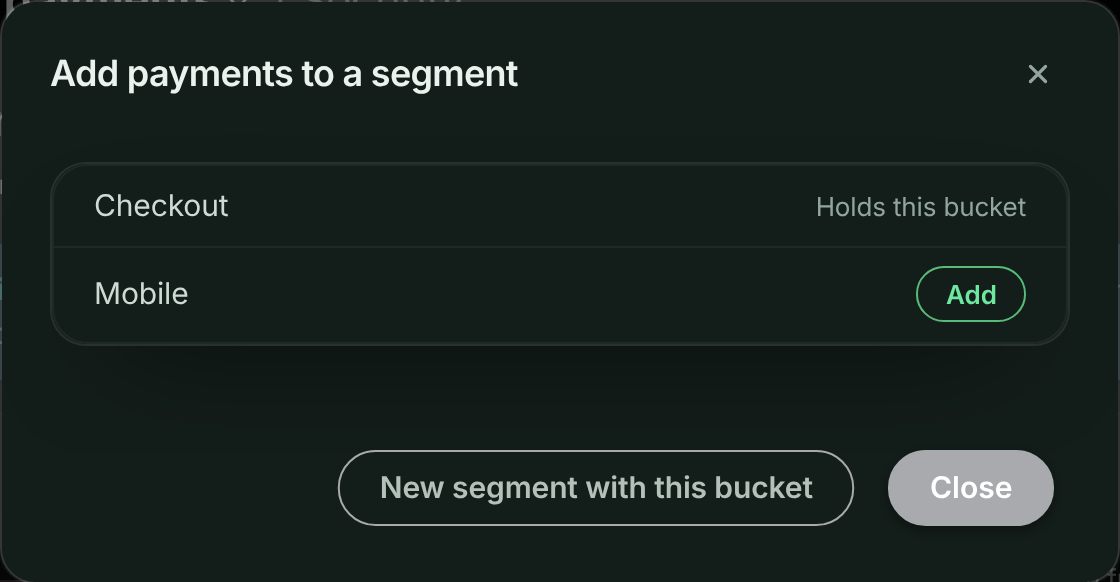
Open the bucket menu at the top of the app and choose Add to Segment. Each segment is listed with Add, or with Holds this bucket if it already has it. Adding a bucket adds the whole bucket; to choose some of its services, edit the segment.
Adding the current bucket to a segment.
The segment overview
Every segment opens on the same overview, so it needs no setup. The time range and environment at the top apply to everything on the page.
- The whole segment: requests, error rate, p95 latency and, if your plan includes the firewall, firewall blocks, each against the previous period.
- Services: one row per service in the segment, grouped by bucket (click a bucket to collapse it): requests with a sparkline, error rate, p95, the bucket’s last deployment, the instances running now and their Node versions. Click a column heading to sort by it, and a service to open it.
- Requests, errors and p95 by service: one band or line per service (the busiest eight; on the requests and errors charts the rest are added up as Other), with the deployments of every bucket in the segment marked on the time axis, so “errors rose right after payments deployed” is visible. The deployments are also listed under the charts.
- Top endpoints across the segment, each with its service, and top errors, by service and status code.
Each panel is a report on the segment, so its numbers are the same as a report you build yourself with the segment as its scope.
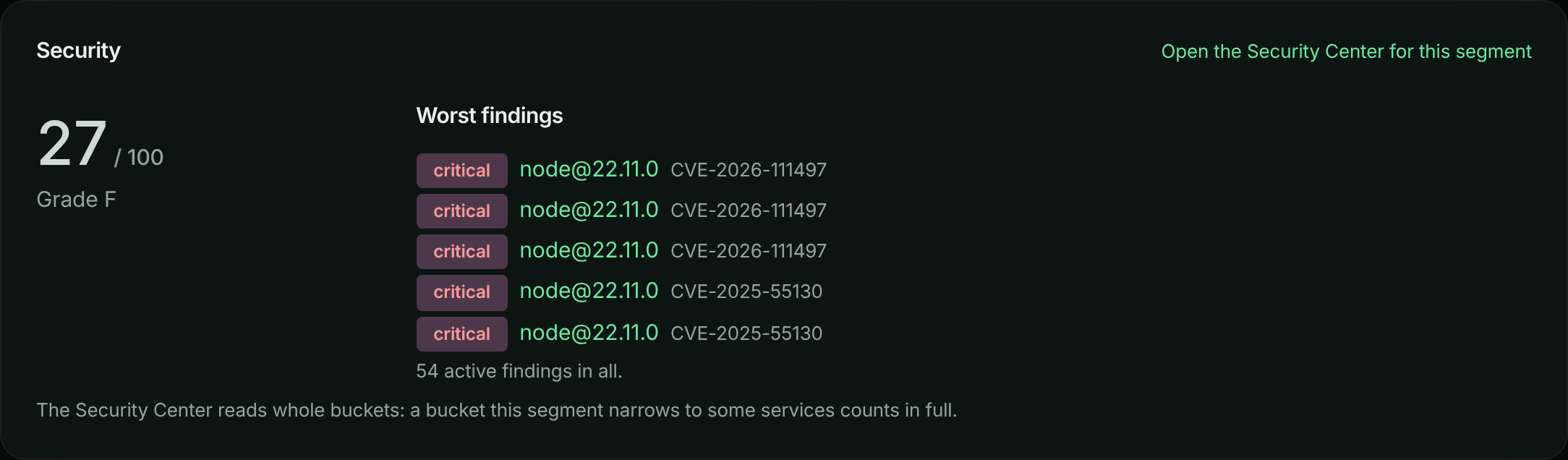
When the Security Center is on for your account, the overview also has a Security panel: the segment’s security score and its five worst findings, each opening the finding, with a link to the Security Center filtered to the segment. The Security Center reads a segment as whole buckets, so a bucket the segment narrows to some services counts in full, and the panel says so.
A segment’s security.
Customize
Click Customize to copy the overview into a dashboard you can change like any other: each panel becomes a saved report on the segment, visible to everyone on the account, and the dashboard opens on the segment with the overview’s time range and environment. Customize needs the Custom reports feature, and the reports and the dashboard count towards your plan’s saved reports and dashboards. The overview itself does not change.
Segments in reports, dashboards and traffic search
- Reports and dashboards: the Bucket picker lists your segments under Segments. A report or dashboard on a segment reads every bucket in it. Group by Bucket or by Service to split its numbers.
- Security Center: the Buckets menu lists your segments; the score, findings, coverage and posture then cover the segment’s buckets.
- Alert routing: a notification route can match a segment, so “everything in Checkout goes to #checkout-oncall” stays true as buckets join the segment.
- Embeds: a report or dashboard embed can be locked to a segment with
segmentSid, as it can to a bucket. It reads the segment’s buckets each time it runs. - MCP:
list_segmentslists them,get_segment_overviewsays how one is doing, andrun_reporttakesscope.segmentSid, so an agent can answer “what’s the error rate across Checkout?”. See MCP tools. - Traffic search: search a segment’s requests with the Segments API; each request carries its bucket.
If your plan stops including Segments, saved reports and dashboards on a segment keep running, and your segments stay listed; creating and changing segments, and new questions across one, need the feature again.
All services
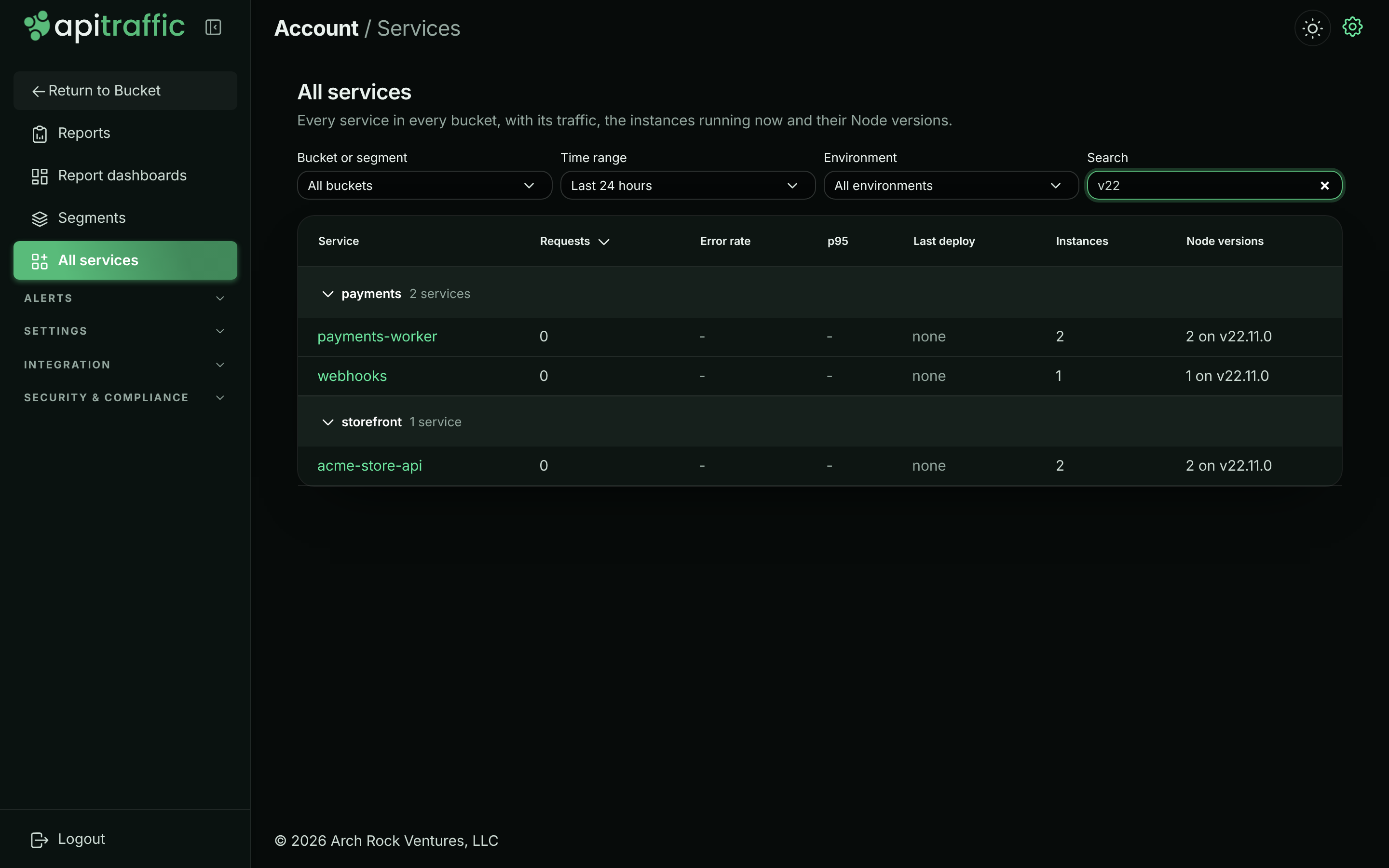
Services, in the All buckets sidebar, lists every service in every bucket with the same columns as a segment’s services table. Choose a bucket or a segment to narrow it, a Label to list the services labelled with it (their own labels or their bucket’s), and search by service, bucket or Node version, for example v18 to find every service still on Node 18.
Every service across the account.
Access
People on the account see every bucket, so every segment shows in full. A connection limited to some buckets, such as an MCP connection chosen for some buckets, sees a segment narrowed to those buckets, with a note such as “2 buckets in this segment are outside your access” instead of their names, services or traffic. This is the same for buckets a rule adds.